
IT Help and Resources
Get Help!
Can’t find what you’re looking for, or running into a problem? The IT Help Desk is here to help with anything technology-related at NCSC.
Office Location
The Helpdesk is located upstairs in Fallerius.
Student IT Services Brochure
Introduction
This page covers everything you need to know about your NCSC technology accounts, tools, and resources. Whether you’re a new student logging in for the first time, a returning student, or employee looking for a quick reference, you’ll find what you need here. If you can’t find what you’re looking for, the IT Help Desk is always happy to help.
Your Account
Your username and password will be activated by your Advisor once you have your initial new or returning student advising meeting.
Email Address / Username
Your NCSC Student email address is your username for all college systems. It is built using a formula based on your name and date of birth:
Formula First 5 letters of last name + first name initial + middle name initial + 2-digit birth month + 2-digit birth day + @mail.ncstatecollege.edu Example Jane Marie Smith, born March 15 → SmithJM0315@mail.ncstatecollege.edu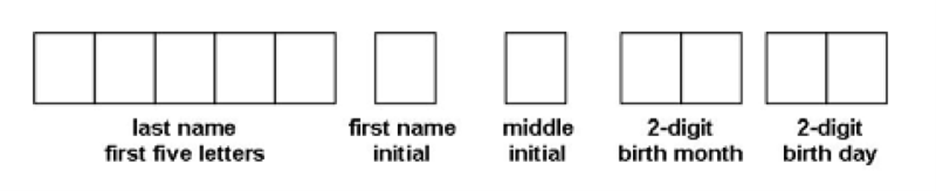
Your initial password is built using a formula based on your name and Social Security Number:
Formula NCSC + first 2 letters of first name (UPPERCASE) + last 4 digits of SSN + first 2 letters of last name (lowercase) Example Jane Smith, SSN ending in 7890 → NCSCJA7890sm We recommend changing your initial password as soon as you are able. You can reset or change your password at any time at passwordreset.microsoftonline.com.What are the password requirements?
Passwords must be at least twelve (12) characters long and contain 3 out of 4 elements:
- Upper case, lower case, numbers, or special characters.
- You can only use the symbols found on the 1-8 keys using your shift key.
- You cannot use your name in your password.
- The system remembers the last 6 passwords – they cannot be reused.
Multi-Factor Authentication (Duo)
The college uses Duo Security to protect your account. The first time you sign in, you will be prompted to enroll your phone. After enrollment, Duo will send a push notification to your phone each time you log in.
- Log in to any campus portal or application using your student credentials (laptop or desktop works best for first time setup.)
- You’ll be taken to Duo’s enrollment page—click Get Started.
- Pick your preferred authentication method (recommended: Duo Mobile, fingerprints, or a security key).
- Follow the on-screen guidelines to complete setup:
- Duo Mobile: install the app, scan the QR code, and approve the login.
- Security key/biometric: complete the device-specific setup.
- Once enrolled, continue logging in as you normally would, just have your secondary verification method available.
Tips:
- Stick with supported browsers like Chrome, Firefox, Safari, or Edge.
- Avoid trusting Duo on shared/public devices.
- If something doesn’t work or you lose your device, reach out to our IT Help Desk at helpdesk@ncstatecollege.edu or 419-755-4734.
MyNC Hub - Your All-in-One Portal
How to Access MyNC Hub
- Go to homepage
- Click the menu icon at the top of the page
- Select MyNC Hub from the list
- Select Student or Employee as appropriate
- Enter your NCSC email address and password
What’s Inside MyNC Hub
- Email (Outlook): Your college inbox. Instructors and the college will contact you here — check it regularly.
- Canvas: Course materials, assignments, grades, and instructor messaging.
- MyNC Hub: Registration, financial aid, billing, transcripts, and your schedule.
- Microsoft 365: Word, Excel, PowerPoint, Teams, and 1 TB of OneDrive storage — free to use and installable on up to 5 personal devices.
- Other Links: Links to many other resources and tools that will help on your college journey.
Printing
Campus printing is available through our Mobility Printing system. To set up printing on your device or to manage your print jobs, visit the Mobility Printing portal:
Free Antivirus - Sophos Home
NCSC provides Sophos Home Commercial Edition free of charge to all students, faculty, and staff. This is commercial-grade security software that typically costs $40–$200 per year. It can protect up to 10 personal devices.
What’s Included
- Real-time antivirus
- Advanced web protection
- AI threat detection
- Ransomware protection
- Banking protection
- Privacy and identity protection
- Malware scan and clean
- Remote management
- Scheduled scans
- Automatic updates
How to Claim Your Free License
- Visit sophos.com/en-us/employee
- Enter your NCSC email address and click Submit
- Check your NCSC email inbox for a license activation message from Sophos
- New to Sophos Home: click Create Account in the email and follow the prompts to set up your account
- Already have a Sophos Home account: sign in at sophos.com, click your name in the top right, select My Account, click Have a coupon?, enter the coupon code from your activation email, then click Validate and Apply